Chapter 1 - Core React Native
Creating an app
Creating a new app using Expo CLI is a straightforward process. Expo is a framework and a platform for universal React applications, and it simplifies the process of starting and developing a new React Native app. Here's how you can create a new app using Expo CLI:
Prerequisites
Before you start, make sure you have Node.js installed on your computer. You can download it from Node.js website. Expo CLI requires Node.js version 10 or later.
Installation of Expo CLI
- Install Expo CLI: Open your terminal or command prompt and run the following command to install Expo CLI globally:
This will install Expo CLI on your system.
npm install -g expo-cli
Creating a New Expo Project
-
Create a New Project: Once Expo CLI is installed, you can create a new project by running:
expo init MyNewAppReplace
MyNewAppwith the name of your app. -
Choose a Template: Expo CLI will prompt you to choose a template. You can select a blank template or one of the predefined templates (like tabs, minimal, etc.) for your new project.
-
Navigate to Your Project Directory: After the project is created, navigate to your project's directory:
cd MyNewApp -
Start Your Project: Run the following command to start the Expo development server:
expo startThis will open a new tab in your web browser with the Expo developer tools.
Running the App on Your Device
- Run the App on a Simulator or a Physical Device:
- iOS Simulator/Android Emulator: If you have Xcode (for iOS) or Android Studio (for Android) installed, you can open the simulator or emulator directly from the Expo developer tools in your browser.
- Physical Device: Download the Expo Go app from the App Store (iOS) or Google Play (Android). Scan the QR code displayed in your terminal or in the Expo developer tools using the Expo Go app to open your project on your device.
Additional Notes
-
Dependencies and Libraries: To add additional libraries or dependencies, use
npmoryarn. For example:npm install <library-name>or
yarn add <library-name> -
Expo Documentation: For more details and advanced configurations, visit the Expo documentation.
Following these steps will set up a basic Expo project which you can then develop further according to your requirements.
Core Components
- Core Components
- Show some of the examples.
Assigment
- Make the presentation about you:
- https://snack.expo.dev/
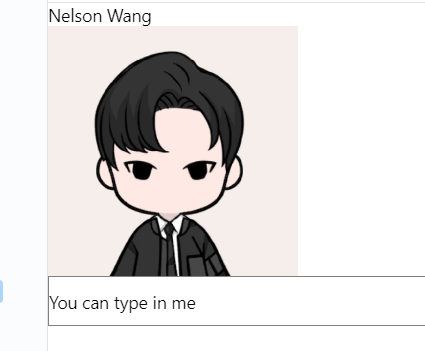
import React from 'react';
import {View, Text, Image, ScrollView, TextInput} from 'react-native';

const App = () => {
  return (
    <ScrollView>
      <Text>Nelson Wang</Text>
      <View>
        <Image
          source={{
            uri: 'https://avatars.githubusercontent.com/u/29577570?v=4',
          }}
          style={{width: 200, height: 200}}
        />
      </View>
      <TextInput
        style={{
          height: 40,
          borderColor: 'gray',
          borderWidth: 1,
        }}
        defaultValue="You can type in me"
      />
    </ScrollView>
  );
};

export default App;
Flex Box
const FlexboxExample = () => {
  return (
    <View style={styles.container}>
      <View style={styles.box1}>
        <Text>Box 1</Text>
      </View>
      <View style={styles.box2}>
        <Text>Box 2</Text>
      </View>
      <View style={styles.box3}>
        <Text>Box 3</Text>
      </View>
    </View>
  );
};